


Guidance Tag
A guidance tag is a plain-language instruction you keep inside the file it concerns. The marker is written as @guidance: inside a supported comment, or supplied by the special @guidance.txt folder file. Machai Ghostwriter reads these instructions during Guided File Processing and uses them to prepare an AI-assisted update. Think of a tag as a note in the margin: it tells the assistant what you want, while you remain responsible for the final result.
Guidance tags help automate routine work such as improving documentation, creating website content, or adding tests. They do not change how your application runs, add dependencies, or affect source data at runtime. Because the instruction lives with the project, it can be reviewed, versioned, reused, and refined by the whole team. You can also use the saved instruction as a checklist for manual work when AI processing is not appropriate.
How it works
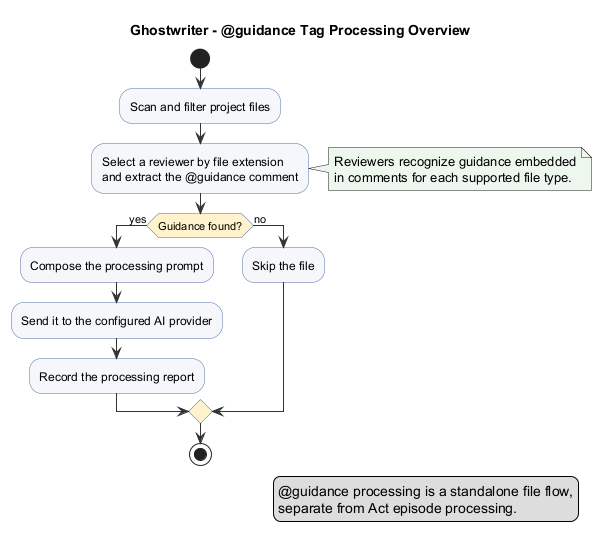
- Add an
@guidance:tag in a supported file, or add a folder instruction file named@guidance.txt. - Run Ghostwriter and choose a project folder and, optionally, a scan path.
- Ghostwriter—not the AI—finds matching supported files that contain guidance and gives each file its own processing context. If your run is configured with default guidance, matching files can instead use that default instruction.
- A file-type-aware reviewer recognizes the tag and provides the relevant instruction and file information to the processing request. Markdown and HTML/XML reviewers require the tag in an HTML/XML comment and supply the complete file content. The Java reviewer accepts block or line comments and supplies the complete source (with special package-level handling for
package-info.java). TypeScript and Python reviewers accept their supported comment or string forms and supply the non-blank instruction they find. PlantUML files are reviewed when they contain the marker and supply the complete file content. The@guidance.txtreviewer uses that file's complete contents as the instruction for its folder. - Ghostwriter combines this material with its standard processing rules and sends it to your configured GenAI provider. Review the result, then revise the tag and run again if needed.
This follows the Guided File Processing approach: natural-language instructions are treated as maintainable project assets and are kept in context with the files they describe. AI is useful for routine enrichment—explaining existing code, adding examples, or organizing text—but it cannot know your project-specific intent unless you state it in the guidance.
Guidance-driven processing is deliberately an assistant workflow rather than a promise that AI will make every decision for you. The application identifies eligible files and creates a separate context for each one; you remain the author who checks the proposed result. The same instructions can be followed manually when a task should not use AI.
Scope and processing order
The project folder is the base directory Ghostwriter examines. A scan path narrows that work to a file, folder, glob pattern, or regular expression; it can be relative or absolute. A narrow scan is useful when you want to update only one documentation area or module.
Ghostwriter recognizes project modules and processes child modules before the parent project. Files deeper in the directory structure are considered first, which helps when a top-level file relies on information from lower-level files. Child modules may run in declared order or in parallel when multithreading is enabled; a build tool can instead determine the module order from dependencies.
The model is selected for the run, so choose a model that fits the quality, speed, and cost you need. Ghostwriter can be used from the command line or from a Maven build, and is suitable for repeatable local or CI/CD workflows.
Supported files and tag styles
Reviewers recognize these built-in file types:
| File type | Extension(s) | Where to put the tag |
|---|---|---|
| HTML, HTML fragments, and XML | html, htm, xml |
An HTML/XML comment: <!-- @guidance: ... --> |
| Markdown | md |
An HTML comment: <!-- @guidance: ... --> |
| Java | java |
A block or // comment |
| TypeScript | ts |
A block or // comment |
| Python | py |
A # comment or triple-quoted string |
| PlantUML | puml |
Include the marker anywhere in the diagram; a PlantUML comment is the usual choice |
| Folder instruction | exactly @guidance.txt |
Put the instruction in that file |
An ordinary .txt file is not an inline-guidance file: text files have no comment syntax. @guidance.txt is the exception and represents guidance for its folder. Java's package-info.java can also provide package-level guidance.
The exact comment format matters. The Markdown reviewer looks for the marker inside an HTML comment and supplies the complete Markdown file. The HTML/XML reviewer likewise requires an HTML/XML comment and supplies the complete file. The Java reviewer accepts a block or line comment and supplies the complete source, except that package-info.java receives package-level context. TypeScript and Python reviewers extract non-blank text from their supported line, block, or triple-quoted forms. The PlantUML reviewer checks for the marker anywhere in the file and includes the complete file when it is present. @guidance.txt is identified by its exact filename rather than by an inline marker and supplies its complete contents. Tags are retained in the source so they can be found in a later run.
Practical usage
Add guidance to a Markdown page
- Open the page you want to update.
- Add an HTML comment near the top.
- State the audience, required content, and anything that must not change.
- Run Ghostwriter for the project or a targeted scan path.
- Check the proposed update and improve the instruction before rerunning if necessary.
<!-- @guidance:
Update this README for new users.
Include installation, a short usage example, and support information.
Do not remove existing license details.
-->
Add guidance to source files
Use the comment style appropriate to the language. In Java, for example:
/* @guidance:
 * Add clear documentation for public methods.
 * Include one simple usage example where helpful.
 * Do not change method names or behavior.
 */
TypeScript accepts block or // comments. Python accepts either a line comment with text on the same line or a triple-quoted string:
'''
@guidance:
- Follow PEP 257 for docstrings.
- Document public classes and functions.
- Do not change runtime behavior.
'''
For a PlantUML diagram, place the marker in a diagram comment:
@startuml
/' @guidance: Keep this diagram consistent with the current workflow. '/
Alice -> Bob: Request
@enduml
Guide a folder
Create @guidance.txt in the folder. Its full content becomes the folder instruction, making it useful for a shared test style, documentation rules, or requirements for related examples.
Create high-quality unit tests in this folder.
Use descriptive test names.
Cover edge cases and error handling.
Follow the Java version configured by the project.
Run Ghostwriter
After configuring access to a GenAI service and selecting a model, run the standalone application or Maven goal:
java -jar gw.jar
mvn gw:gw
Ghostwriter requires a Java 8 JVM; Java 17 or newer is recommended for the best experience. In a CI/CD pipeline, keep provider credentials and tool permissions in the build environment rather than embedding them in guidance comments.
To limit the scan, provide a path or pattern, for example:
java -jar gw.jar "glob:**/*.md"
mvn gw:gw -Dgw.path="glob:**/*.md"
The model selection applies to the run. Run separate scans when different folders need different models or instructions.
What happens during a run?
GuidanceProcessor loads reviewers through Java's service-provider mechanism and selects one by normalized file extension. The built-in reviewers cover Markdown (.md), HTML/HTML fragments/XML (.html, .htm, .xml), Java (.java), TypeScript (.ts), Python (.py), PlantUML (.puml), and the exact folder file @guidance.txt (handled through .txt). If no reviewer supports the file, Ghostwriter normally leaves it alone; a configured default instruction is the exception for matching files. A reviewer checks for the marker in the comment or string style it supports and builds the material for that file. Markdown, HTML/XML, Java, and PlantUML reviewers provide file content with project-relative context; Python and TypeScript reviewers provide the non-blank instruction they find with that context. Java package-info.java receives package-level context, while the text reviewer reads the full contents of @guidance.txt and identifies its parent folder. Reviewer loading is extensible: projects can provide additional Reviewer implementations through the same service-provider mechanism.
Ghostwriter then invokes the configured provider with the standard instructions and the reviewer material. Its optional functional tools can inspect and modify files, run commands and examine logs, or obtain web information. Tools that modify files, run commands, or make network requests must be enabled and controlled by your settings.
Guidance processing is deliberately focused on the file or folder instruction. It is a lightweight choice for local, repeatable rules. Use an Act instead when you need a reusable, multi-step workflow with explicit sequencing across a wider task.
Why use guidance tags?
- Save time: keep recurring instructions instead of repeatedly writing prompts.
- Reduce manual work: let Ghostwriter handle routine drafting and updates, then focus on review.
- Improve consistency: give related pages, source files, and tests the same clear standards.
- Keep intent visible: the instruction stays beside the work and is easy to inspect in version control.
- Support collaboration: technical and non-technical contributors can use everyday language to describe the outcome they need.
- Keep control: specify project knowledge, protected content, and acceptance criteria; verify every result before accepting it.
Tips for effective guidance
- Start with the intended outcome and audience.
- List required sections, examples, or checks.
- Say explicitly what must not change.
- Prefer specific requests over “make it better.”
- Keep the tag in a valid comment for the file type.
- Treat the instruction like source code: review and improve it over time.
Further resources
Learn more about scan paths, project structure, AI services, tools, and the wider workflow in Guided File Processing.