


Local Bindex Repository
You can run a local Bindex Repository by starting a Dockerized MongoDB Atlas Local instance. This is useful for development, testing, and validating Bindex data without depending on a remote MongoDB deployment.
The Docker setup under src/docker/mongodb runs MongoDB Atlas Local on localhost:27017, creates the machanism database, configures the bindex collection validator, and creates the Atlas Search indexes defined in src/docker/mongodb/init-db.js.
What you will run
The local repository uses:
src/docker/mongodb/docker-compose.ymlto start MongoDB Atlas Local.src/docker/mongodb/init-db.jsto initialize the database, collection validator, and search indexes.- Docker volumes to persist MongoDB configuration, database files, and
mongotdata between container restarts.
Default connection details:
| Setting | Value |
|---|---|
| Host | localhost |
| Port | 27017 |
| Username | user |
| Password | pass |
| Database | machanism |
| Collection | bindex |
Prerequisites
Install the following before starting the local repository:
- Docker Desktop or Docker Engine with Docker Compose support.
- A terminal or shell that can run
docker composecommands. On Windows, Docker Desktop should use the WSL 2 backend; Git Bash, WSL, and PowerShell are supported shells. - Network access to pull the
mongodb/mongodb-atlas-localimage. - Optional: MongoDB Compass for manual database inspection and initialization.
Verify Docker is available:
docker --version
docker compose version
docker info
docker info must complete successfully before the service can start. No separate compiler, package manager, Dockerfile build, or local image build is required: Docker Compose pulls the configured MongoDB Atlas Local image.
Start the local Bindex Repository
1. Open the MongoDB Docker directory
From the project root, move to the Docker Compose directory:
cd src/docker/mongodb
2. Start MongoDB Atlas Local
Run Docker Compose in detached mode:
docker compose up -d
Docker Compose pulls the required image if it is not already available, starts the MongoDB container, exposes port 27017, and runs the initialization script when the MongoDB data volume is initialized for the first time.
Alternatively, from the project root, run the same service without changing directories:
docker compose -f src/docker/mongodb/docker-compose.yml up -d
3. Check the container status
docker compose ps
The MongoDB service should be listed as running.
4. View logs if needed
docker compose logs -f mongodb
Use the logs to confirm startup, initialization, or diagnose connection issues.
Configure bindex-core to connect locally
Before starting bindex-core, set the environment variables that point the application to the local MongoDB repository:
export BINDEX_REPO_URL='mongodb://localhost:27017/?appName=machanism'
export BINDEX_PASSWORD=pass
export BINDEX_USER=user
export GENAI_PASSWORD=...
export GENAI_USERNAME=...
export gw_model=CodeMie:gpt-5.4-2026-03-05
Then start bindex-core using your normal development workflow. The application should connect to MongoDB on localhost:27017 using the configured username and password. Quoting the URL is safe in Bash-compatible shells and prevents special characters in a future connection-string option from being interpreted by the shell.
In Windows PowerShell, set the same values with:
$env:BINDEX_REPO_URL = "mongodb://localhost:27017/?appName=machanism"
$env:BINDEX_PASSWORD = "pass"
$env:BINDEX_USER = "user"
$env:GENAI_PASSWORD = "..."
$env:GENAI_USERNAME = "..."
$env:gw_model = "CodeMie:gpt-5.4-2026-03-05"
Connect with MongoDB Compass
MongoDB Compass is the easiest way to inspect the local database and manually run initialization steps.
-
Download and install MongoDB Compass.
-
Start the Docker container with
docker compose up -d. -
Open MongoDB Compass.
-
Create a new connection using this connection string:
mongodb://user:pass@localhost:27017/?authSource=admin&appName=machanism -
Connect and look for the
machanismdatabase andbindexcollection.
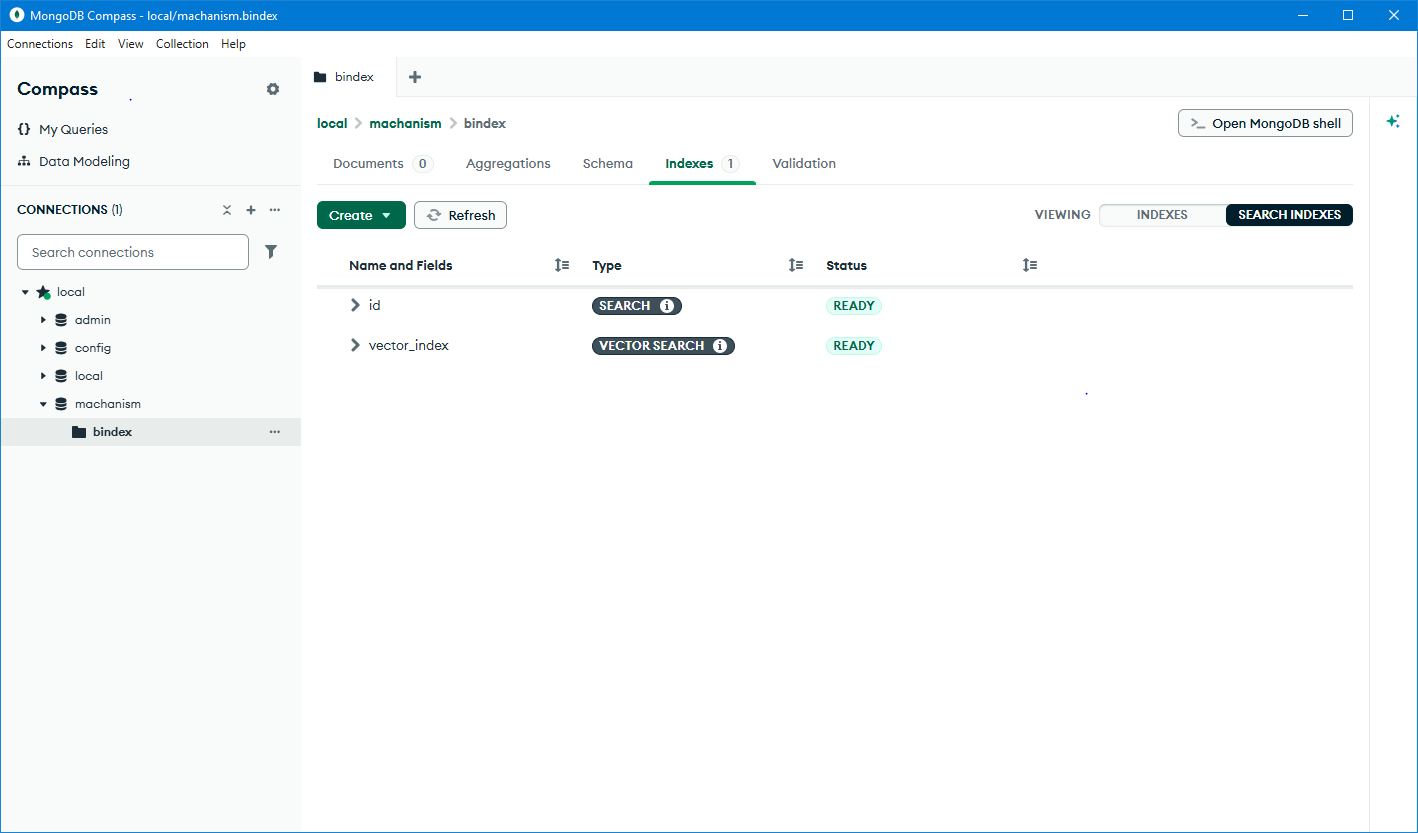
If the database was initialized successfully, the machanism.bindex collection should already exist.
Manually initialize the database with MongoDB Compass
The initialization script is located at:
src/docker/mongodb/init-db.js
Docker runs this script automatically when it initializes a new MongoDB data volume. If you need to apply it manually, use MongoDB Compass as follows:
-
Connect to the local MongoDB instance in Compass:
mongodb://user:pass@localhost:27017/?authSource=admin&appName=machanism -
Open the integrated MongoDB shell (mongosh) from Compass.
-
Open
src/docker/mongodb/init-db.jsin your editor. -
Copy the script content exactly as provided.
-
Paste it into the Compass shell and execute it.
-
Refresh Compass and confirm:
- The
machanismdatabase exists. - The
bindexcollection exists. - The collection validator is configured (view it from the collection's Validation tab).
- The
idandvector_indexsearch indexes were created (view them from the collection's Search Indexes tab).
- The
Run the complete script in one Compass shell session so that db is switched to
machanism before the collection and indexes are created. The script defines the
id Atlas Search index and the vector_index index for classification_embedding
(700 dimensions with cosine similarity). If the collection or indexes already
exist, Compass may report an existing-object error; inspect the current objects
before deciding whether to remove them.
If you want to force a clean reinitialization, stop the container and remove volumes before starting it again:
docker compose down -v
docker compose up -d
Use docker compose down -v carefully because it deletes the local MongoDB data stored in Docker volumes.
Stop the repository
To stop the container while keeping persistent data:
docker compose down
To stop the container and delete all persisted MongoDB data:
docker compose down -v
Troubleshooting
Port 27017 is already in use
Another MongoDB instance may already be running locally. Stop the other service or update the port mapping in src/docker/mongodb/docker-compose.yml.
Check what is using the port:
docker ps
Compass cannot connect
Confirm the container is running:
docker compose ps
Then verify the connection string includes credentials and authSource=admin:
mongodb://user:pass@localhost:27017/?authSource=admin&appName=machanism
Database or collection is missing
The initialization script runs only when a new MongoDB data volume is initialized. If existing volumes were already created before the script was added or updated, recreate the volumes:
docker compose down -v
docker compose up -d
Authentication fails
Use the default credentials from the Docker Compose configuration:
- Username:
user - Password:
pass - Authentication database:
admin
For application configuration, keep:
export BINDEX_USER=user
export BINDEX_PASSWORD=pass
Atlas Search or vector search indexes are not available
Make sure the container image is mongodb/mongodb-atlas-local and not a standard MongoDB server image. Atlas Search features require the Atlas Local image used by the Docker Compose setup.
Check logs for index creation errors:
docker compose logs -f mongodb
Useful links
- Docker Desktop
- Docker Compose documentation
mongodb/mongodb-atlas-localimage- MongoDB Atlas Local
- MongoDB Compass
- MongoDB connection string reference
- MongoDB Atlas Search documentation
- MongoDB Community Support
For project-specific support, review the files in src/docker/mongodb and the bindex-core configuration used by your local development environment. For MongoDB Atlas Local or Compass issues that are not specific to this project, use the MongoDB Community Support forum above.